
Appearance
[1.1] Overview
Main Tabs
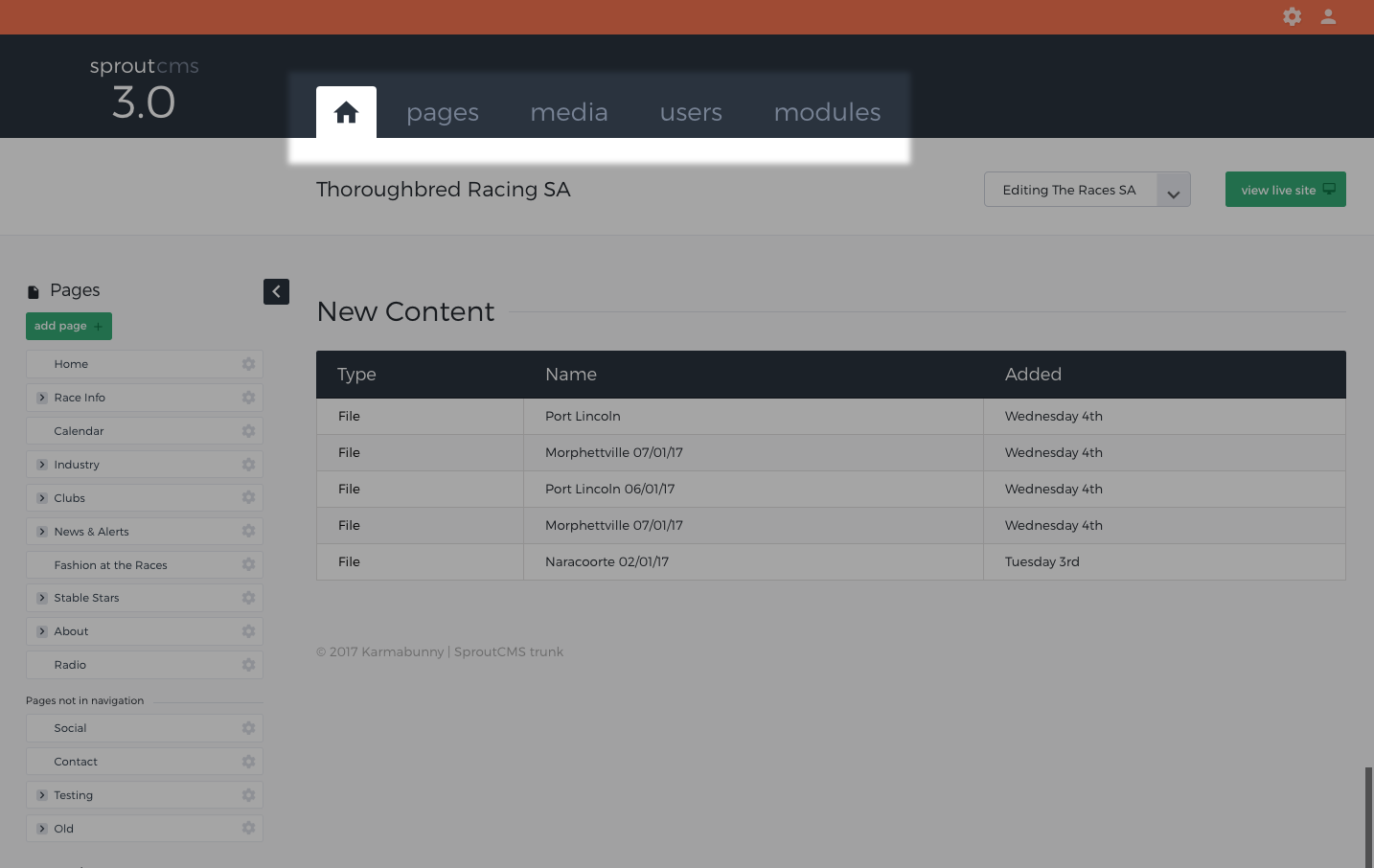
Home: Once you have logged in, you will be taken to the Dashboard where you can see recently updated content and jump straight into managing your website's page tree.
Pages: manage your page tree and individual page structure and content.
Media: Is where you manage the content and media assets for your website. Assets can be images, PDFs, news articles, survey or enquiry forms and more depending on your specific site needs. A good way to think about what constitutes an asset is anything that you may want in multiple areas around your site.
Users: here you can manage any users associated with your website. Note that users are not SproutCMS operators, rather they are people that have some sort of account that allows for front end functionality. This might be a group of users with special permissions to view a certain area of your website or it might be a group of users who have interacted with a piece of content that requires 'membership' (shop, event booking etc.)
Modules: these are any additional modules that have been developed for your website. Modules are typically dynamic content types that can be embedded on your pages. These can include (but are not limited to): blogs, forms, events, social media feeds and payments.
Top utility bar
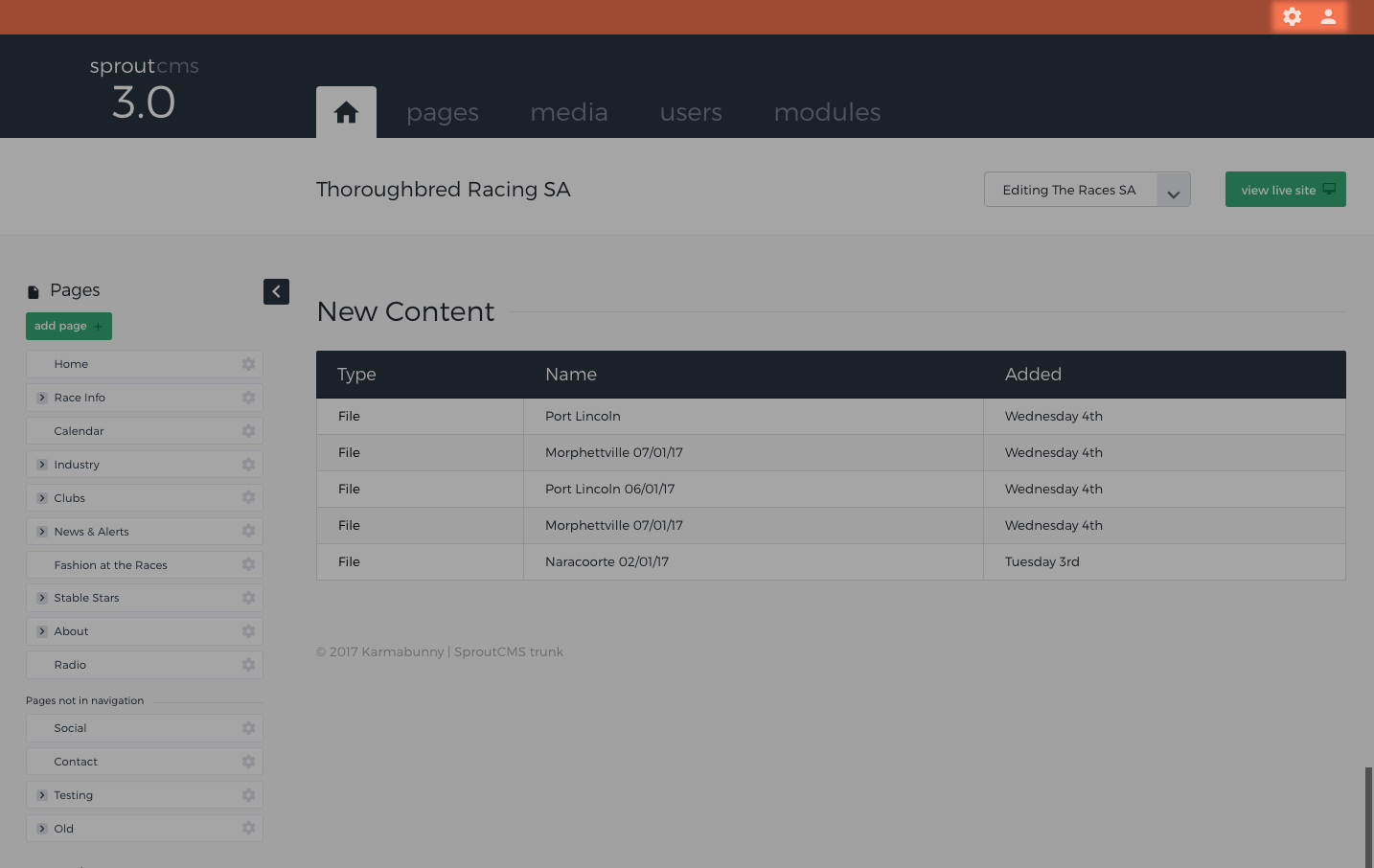
Cog: this is where a number of sitewide settings and tools can be found. Here you can view system activity logs and manage:
- Subsites
- Redirects
- Document types
- Operators
Profile avatar: here you can manage your SproutCMS login details and also log out.
Subsite & View site options
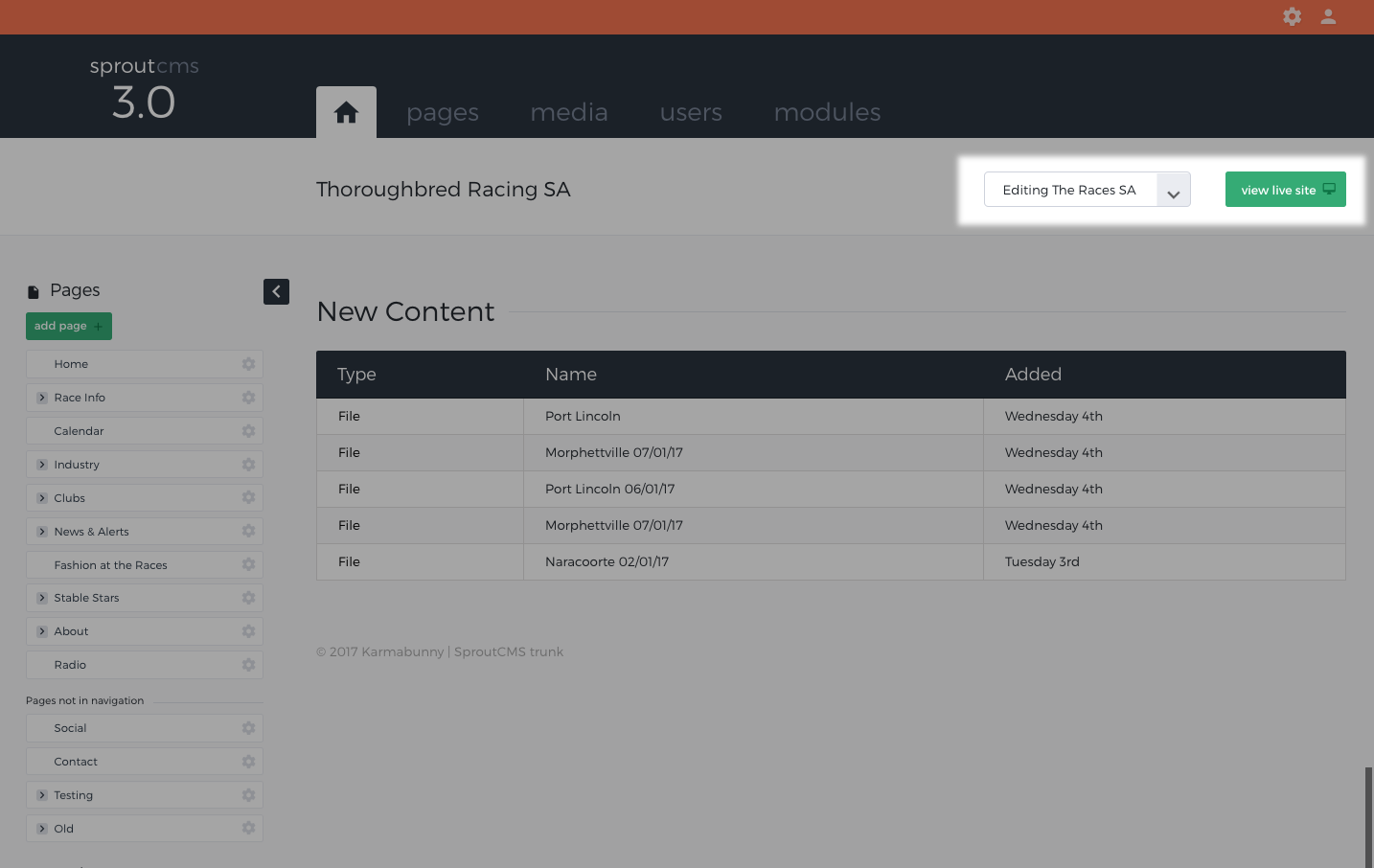
Multiple sites: If you have multiple sites managed in sprout, this is where you switch between them.
View Site: To view the site in a new window. Note that if you are editing a page in SproutCMS, this button will launch that specific page in a new window. If you are not editing a page this button will open the home page of the website.
Left Column
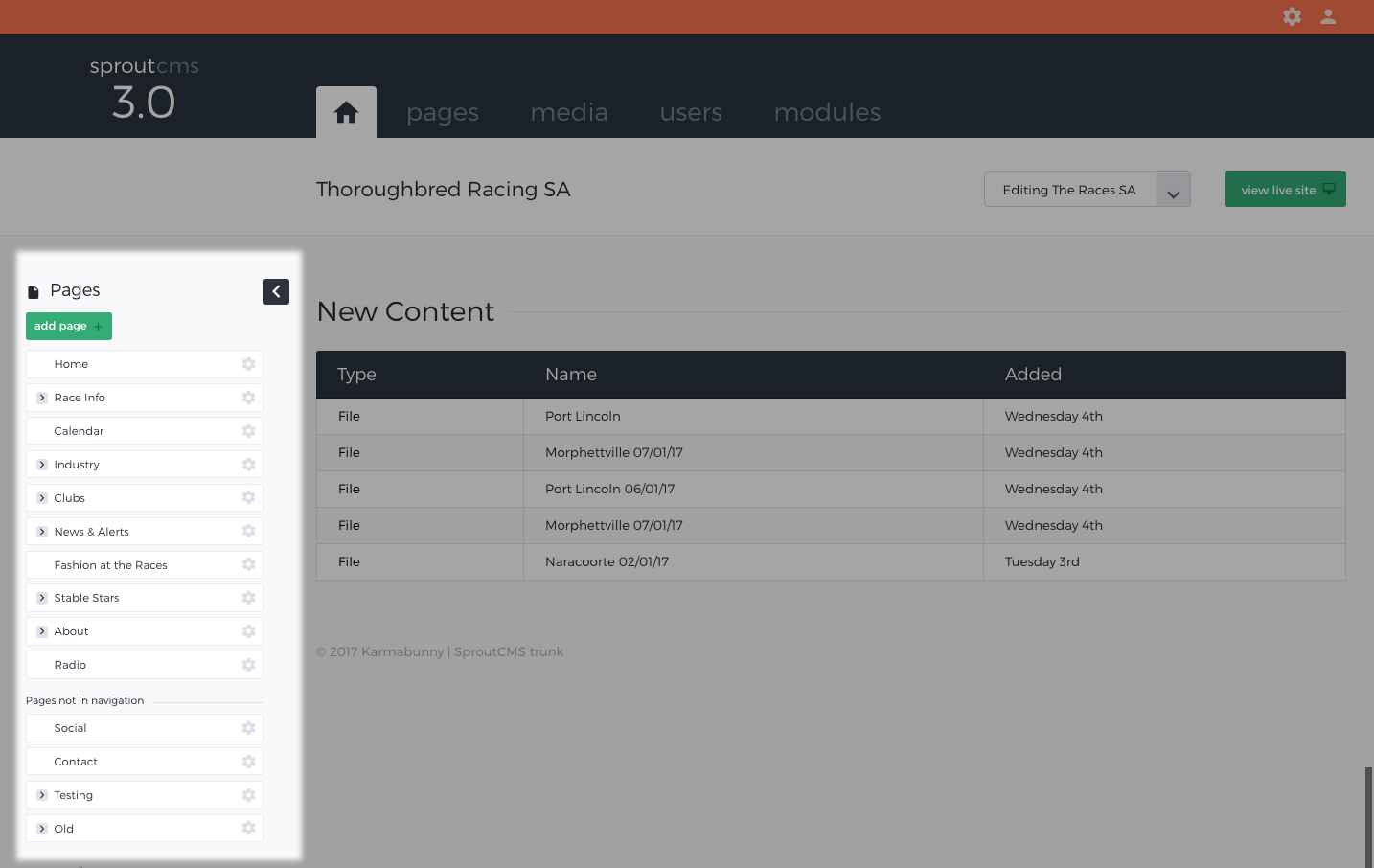
Throughout the site, the left column is your go to place for navigation and options.
Note that this column can be collapsed and revealed at any time by clicking on the 'black arrow' button.
The left column will show options in one of two ways, depending on the module:
Categories: A list of categories available for indexing content within a given module.
Navigation Tree: Used for pages and some custom built modules, it shows individual items, and allows for sub-items (children pages), re-ordering, etc. Arrows indicate a page with 1 or more child pages which you can expand or hide out of the way.
Middle Column
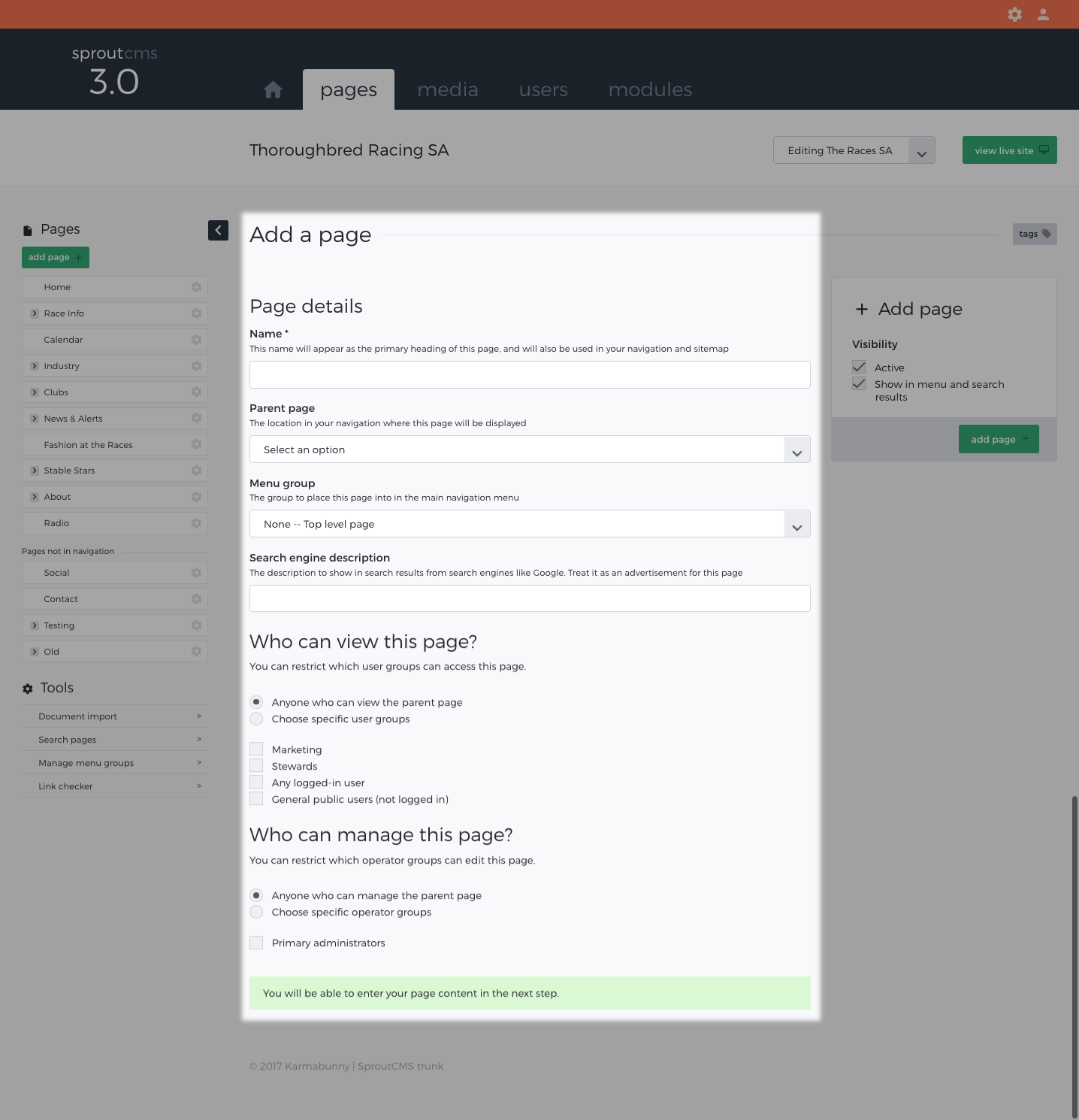
The middle column area is your place for action! This is your primary content entry area. Whether it is within a module, a page or the media repository, your focus will be within this middle column when adding and editing content.
Note that you can hide the left hand column at any time by clicking on the 'black arrow' button. This can be preferred if you prefer a cleaner less cluttered interface and more space for this middle column area.
Right column
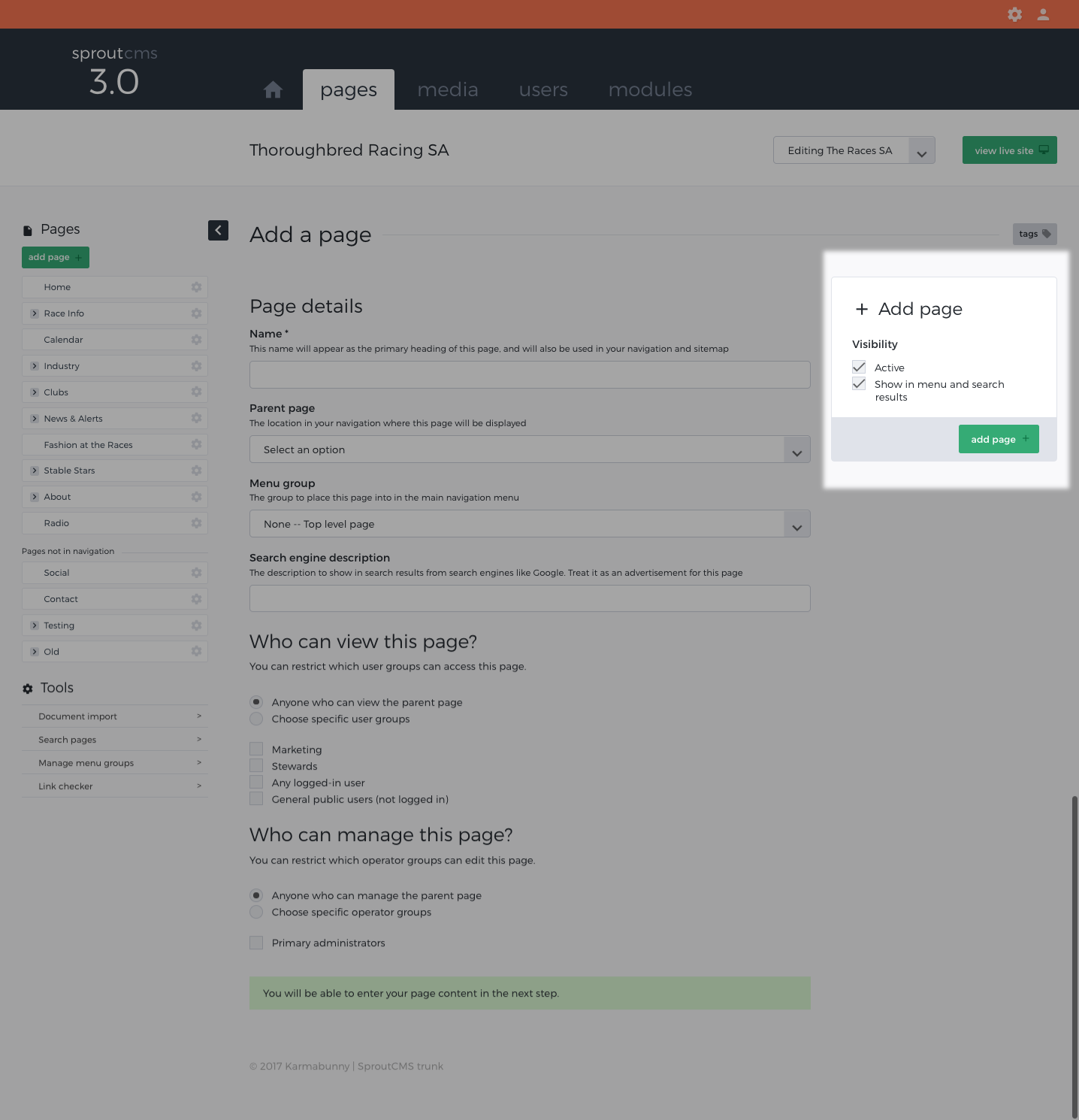
This is where you will click 'save' when you are finished any content edits and you will find module specific options. These options may include (but are not limited to):
- Publishing options
- Visibility - if not active, the content will not be visible, altghough your changes will be saved)
- Change notes
- Delete
- Subsite - if you have multiple website managed within SproutCMS you may want to associate the content with a specific subsite.