
Appearance
[4.1] Pages - adding
To add a page to your website:
- Click into the Pages tab (Main content pages on the website)
- Click on
 in the left-column
 - Fill in the primary page details (see below)
- Save changes
Primary Details
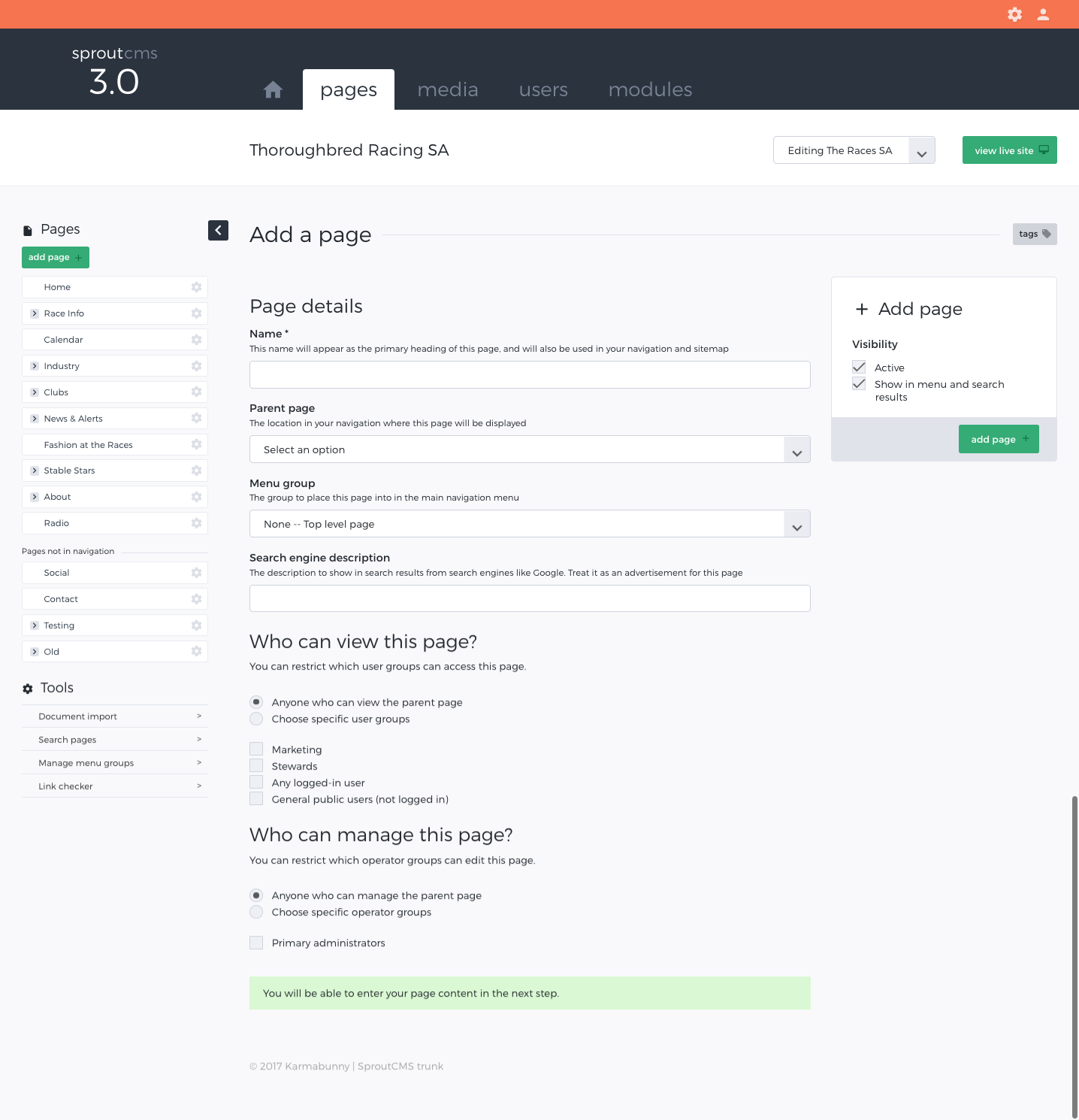
Name
This will be published on the page as your primary page heading, displayed in your default title tag, used as a default navigation option and used as the initial web slug (the final part of the URL - eg. About us will become /about-us).
Parent Page
This is where your page lives within the structure of your website. So, for example, if you have a page called 'Our People', you may want it to live in the 'About Us' section. In this example 'About Us' would be the 'Parent page' when editing the page 'Our People'.
Menu Group
If menu groups have been set up you can choose to add the page to one of them. This will determine where the page appears in the drop down menu (if you have one).
Search engine description
This description shows in search results when someone does a search in search engines like Google. You should write it as a short advertisement for the page (no more than 160 characters).
Who can view this page?
You can restrict which user groups can access this page. See also 'Users'.
Who can manage this page?
You can restrict which operator groups can edit this page. See also 'Operators'.
Save Options
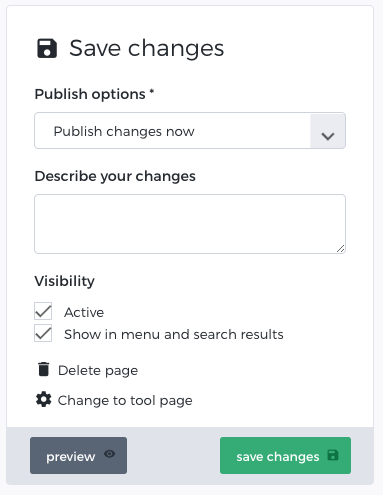
Active: Ticked means the page will be displayed on the website if there is a published revision. Unticked means the page will not be displayed under any circumstances. You can change this at any point in the future.
Show in navigation: Ticked means the page will be shown in the website navigation. Unticked means the page will not be displayed in any dynamic navigation and will also not appear in any in-site searches. You can change this at any point in the future.
Note: Once you have saved the basic parameters of your page, you will be taken to a screen where you can edit the page's content.