
Appearance
[1.2] Categories
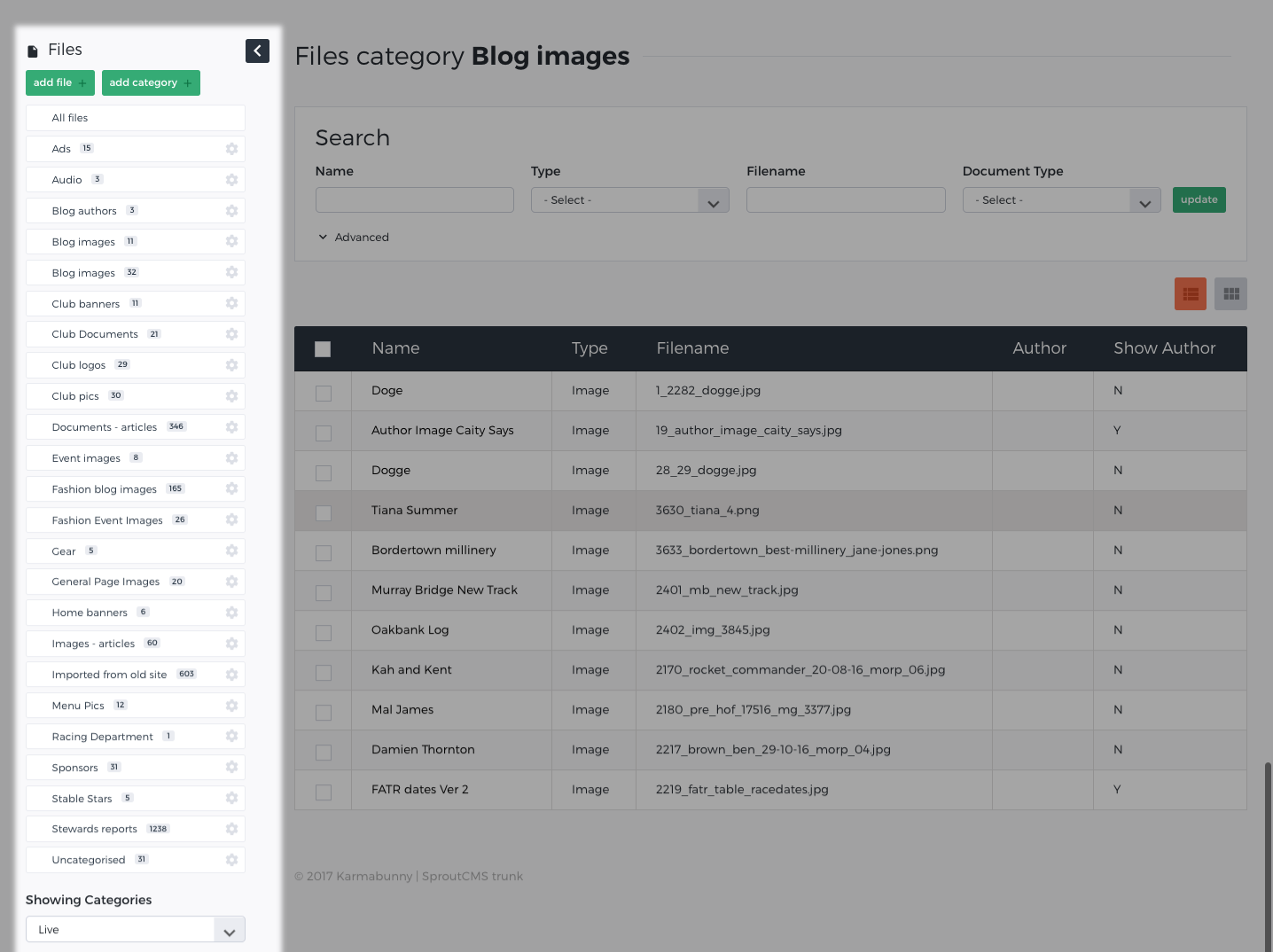
Categories are a feature that is available in every SproutCMS module and are always located in the left sidebar of the interface on a desktop resolution.
Categories can have 2 primary uses:
To help you organise and manage your files. Think of categories like folders on your computer. Organising your files into sensible categories will help you to locate the file later.
Some modules allow you to output content by category. For example, you may want to add an image gallery or a list of files to a page where the images/files are all pulled from a specific category.
Note that you can assign a file to as many categories as you want, allowing you to have the same piece of content appearing in multiple collections on your website.
Adding a Category
Note that this applies to all modules
- Look for the
 button in the left-column.
 - A popup will appear.
- Enter in a name for your category
- Click Add category
Once done, you'll notice that the new category you just created has appeared in the list of categories in the left-column.
Edit a category
You may want to change the name of an existing category. You can do this at anytime, even after items have been added into the category.
- Click on the category that you wish to edit. This will load a page that shows you a list of all the items that belong to that category.
- At the bottom of the list are category options
- Click the Edit link
- Change the category name
- Click the Save Changes button
Re-order items within a category
You may want to re-order the items in a category, as in some instances this will mirror the order in which they are displayed on the live website.
- Click on the category that you wish to edit. This will load a page that shows you a list of all the items that belong to that category.
- At the bottom of the list are category options
- Click the Reorder items link
- Use your mouse to drag around the items in the list
- Click the Save Changes button
Deleting a category
You may want to delete a category. Deleting a category will not remove the items in the category.
Deleting is a permanent action that cannot be undone.
- Click on the category that you wish to edit. This will load a page that shows you a list of all the items that belong to that category.
- At the bottom of the list are category options
- Click the Delete link
- Click the Delete Category button
Archiving a category
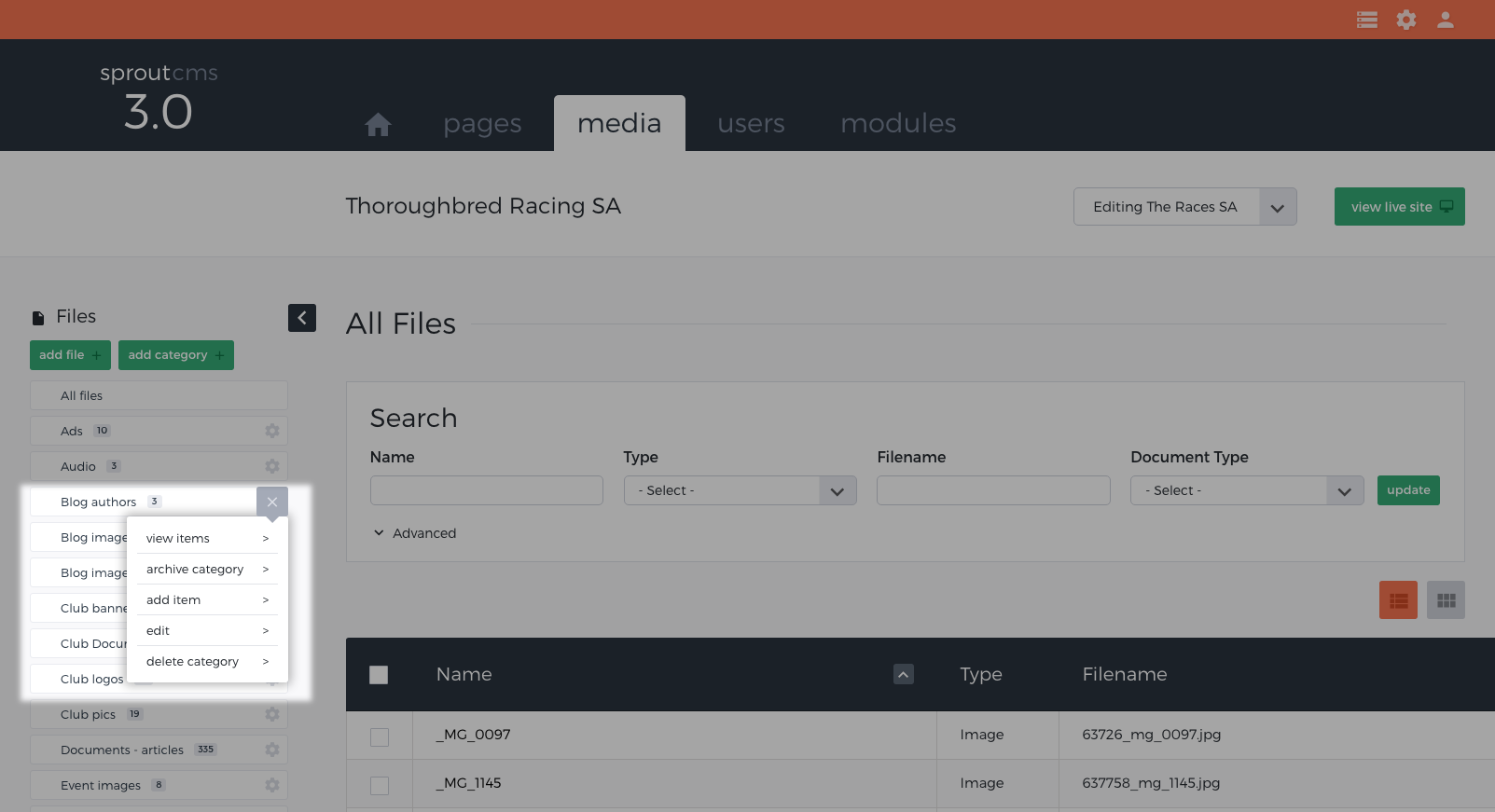
You may find that your primary category list within a given module becomes long and unweildy, with some categories comprised of content that you no longer need to manage actively. If this is the case you could choose to archive a category of items. This will move the category of items in to an 'archived' list in your module and out of your primary list*.
To archive a category click on the cog symbol and select 'archive category'.
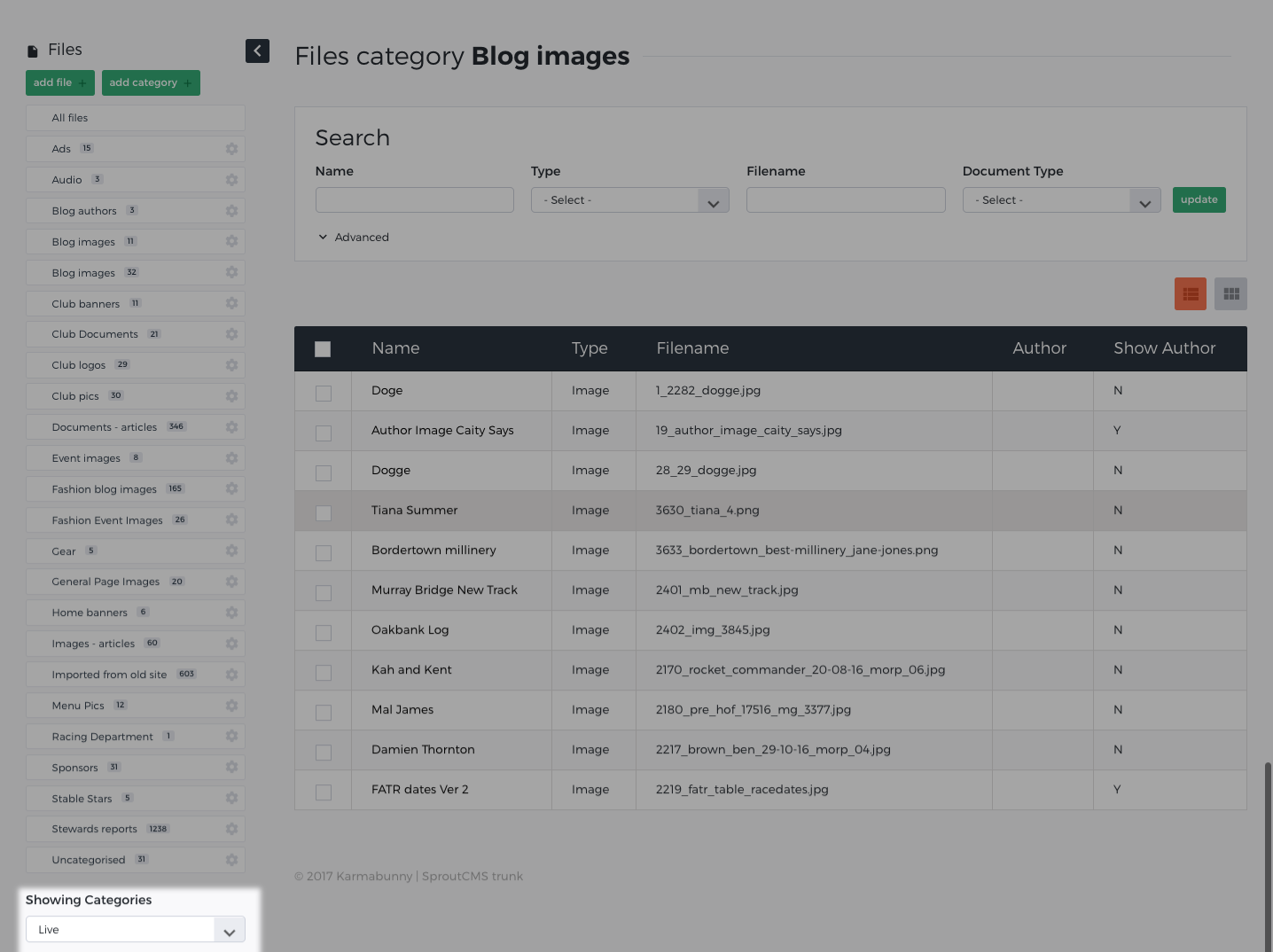
To view archived categories scroll to the bottom of you category list until you see the heading 'Showing categories' and choose 'Archived' from the select control.
- Note that even though a category of items has become archived in SproutCMS, these items will still appear on your website. Archiving is just a way of cleaning up your list to help with easy management of content.