
Appearance
[1.3] Data import
Data can be imported into almost all modules.
Importing is a two-stage process:
- Upload the data onto the server
- Load the uploaded data into the database
1. Uploading data
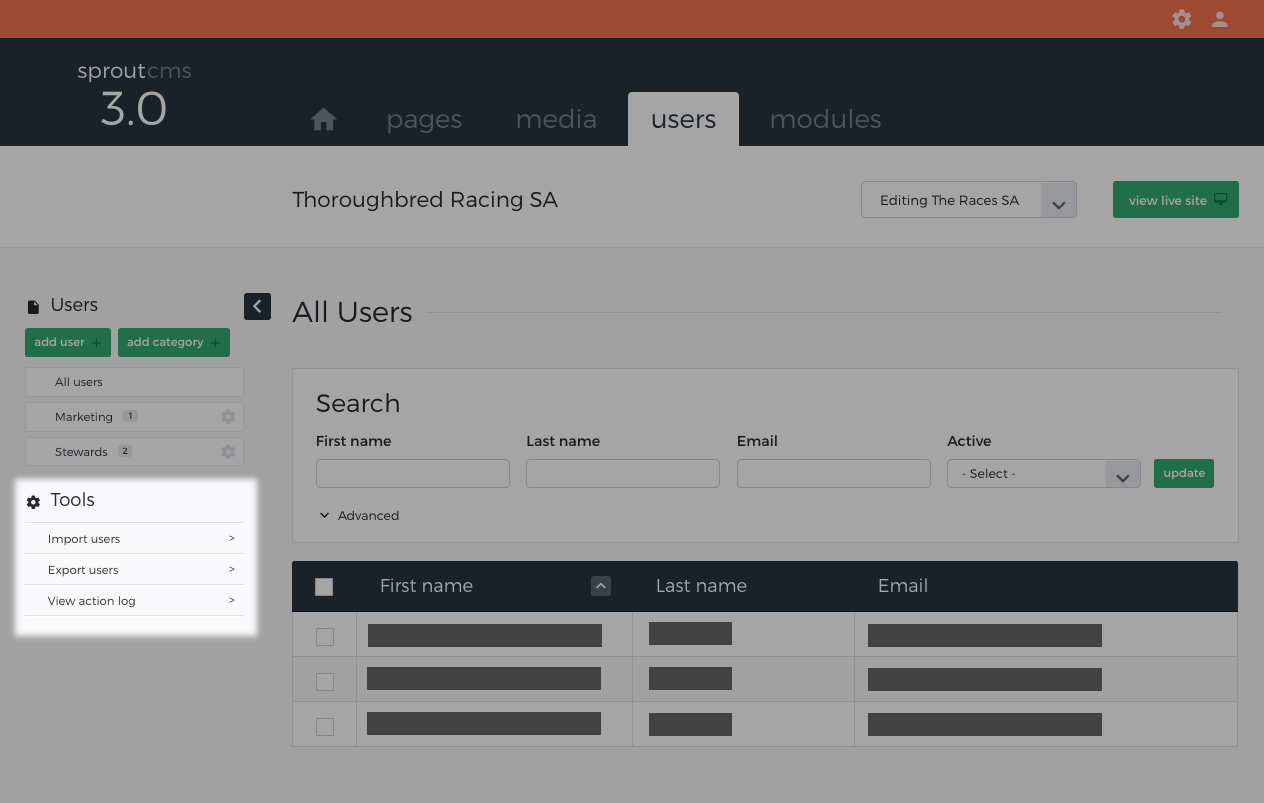
To import data, click on the import link in the tools area of the module navigation.
Step 1. Click Import.
Then select the file you would like to import.
Step 2. Click Browse, and select a file.
Then click upload file to upload the file.
Step 3. Click Upload File, to upload the file to the server.
2. Loading the data into the module/database
After uploading the file, you will be shown an import options screen.
This form has three major sections:
- Field mappings, for choosing how the fields in the uploaded file should be matched into the database.
- Duplicate records, for choosing how to detect and handle duplicates.
- Add to category, which category or categories the imported records should be added into.
Once you have set everything up, click Import Data to import your records. This process may take a while if the data set is large.
Accepted data formats
Data importing supports CSV files, and in some cases, Microsoft Excel (XLS) files.