
Appearance
[4.2] Pages - editing
To edit a page on your website:
- Click into the Pages tab (Main content pages on the website)
- Locate the page you wish to edit in the page tree located in the left-column
- Update the content in your page and any associate details
- Select publishing options
- Save changes
Publish Options
When saving a page you have the option to:
- Publish changes immediately
- Save as a work in progress (this will add it to the revisions tab for this page)
- Request approval for publishing (this will trigger an email to an administrator of your choice)
- Auto publish at a future date - this will allow you to set a date as to when this revision should go live
Visibility Options
Active: Ticked means the page will be displayed on the website. Unticked means the page will not be displayed. You can change this at any point in the future. Active determines if the page is accessable at all.
Show in menu & search results: Ticked means the page will be shown in the website navigation. Unticked means the page will not be displayed in your navigation. You can change this at any point in the future. Note that even though a page is not displaying in the navigation, it can still be accessed if the person knows the URL for the page. To hide it completely you must use the 'active' page or set set specific page permissions.
Your page's structure
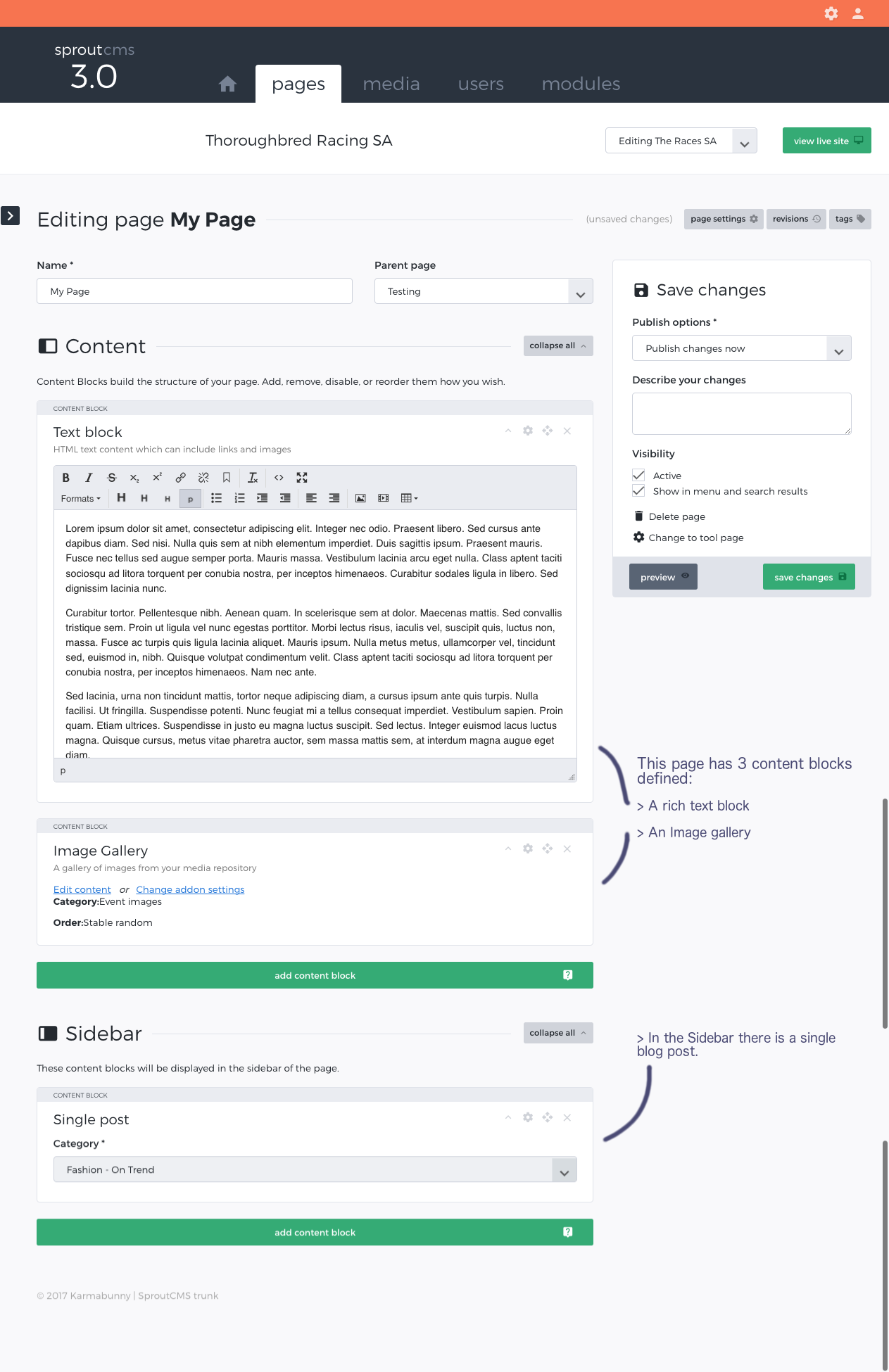
A given page in SproutCMS is comprised of a template (as defined by the web design) and then 'content blocks' of your choosing.
You can add, edit and remove content blocks within the regions that have been defined in the template - in a generic inner template these regions are typically 'Content' and 'Sidebar', but others can be defined as needed by a given template.
Content blocks
Content blocks can be added, edited, removed, and re-ordered within a designated area of your page. The most obvious and commonly used content block is 'Rich text', which gives you a rich text editor where you can enter and format text and insert images and videos.
Other content blocks that are available by default include:
- Page lists
- Page gallery
- Image gallery
- List of files
- Sitemap
- Form
- Blog posts
You will see other content blocks available to insert if there are other modules installed.
For more on content blocks and a demo on how they work, see this video:
Adding a content block
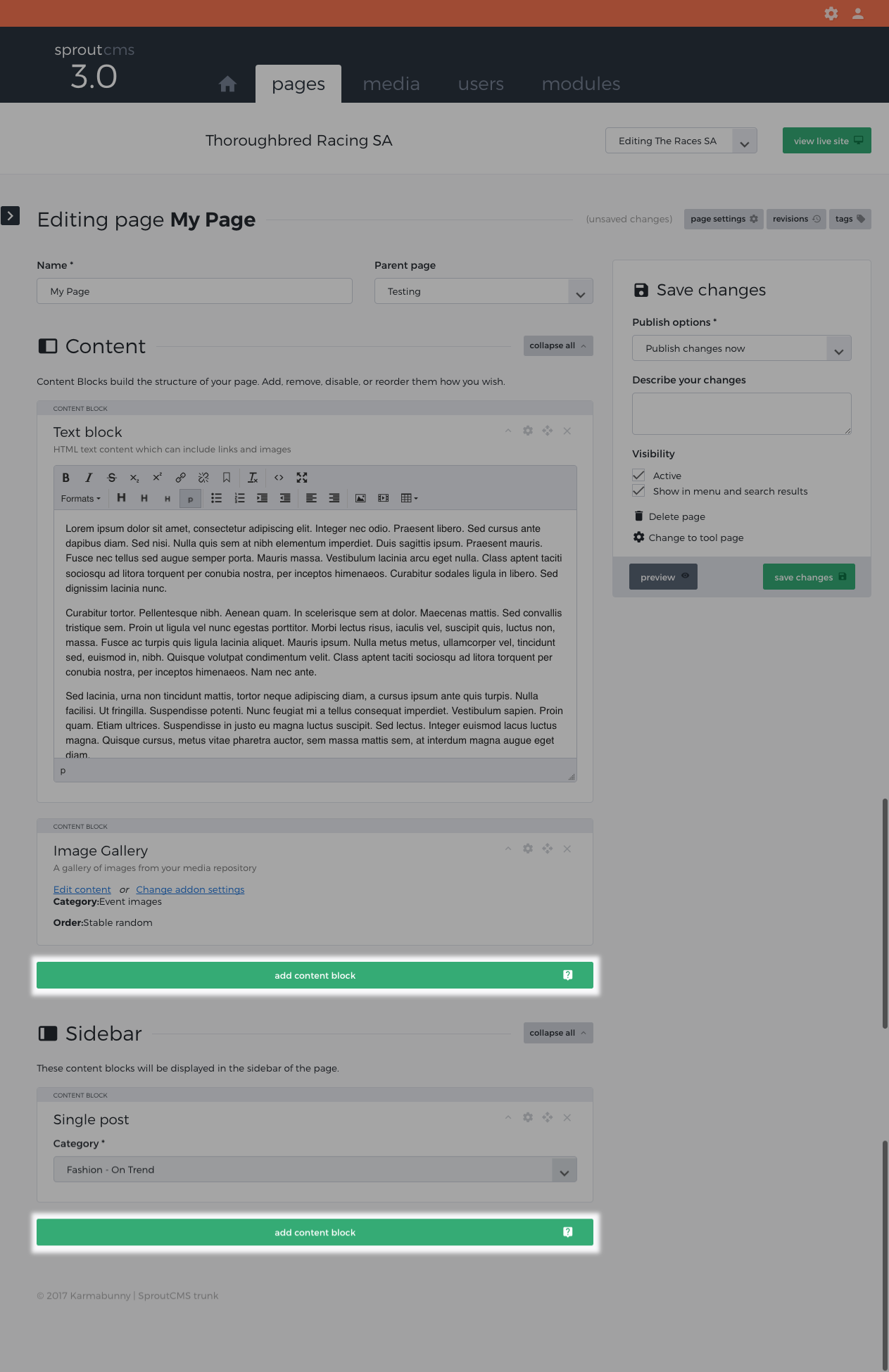 Click on the 'Add content block' button to see a list of the available content blocks in your website for this page area.
- If you are unclear what a given content block is, hover over the name to see a short description.
- Select the content block you want to add to the page.
- Add your content (if applicable) or select the parameters of the content block to ensure you are putting the desired content on the page.
- Save your page*
*Note that you can 'Preview' your page before saving.
Removing a content block
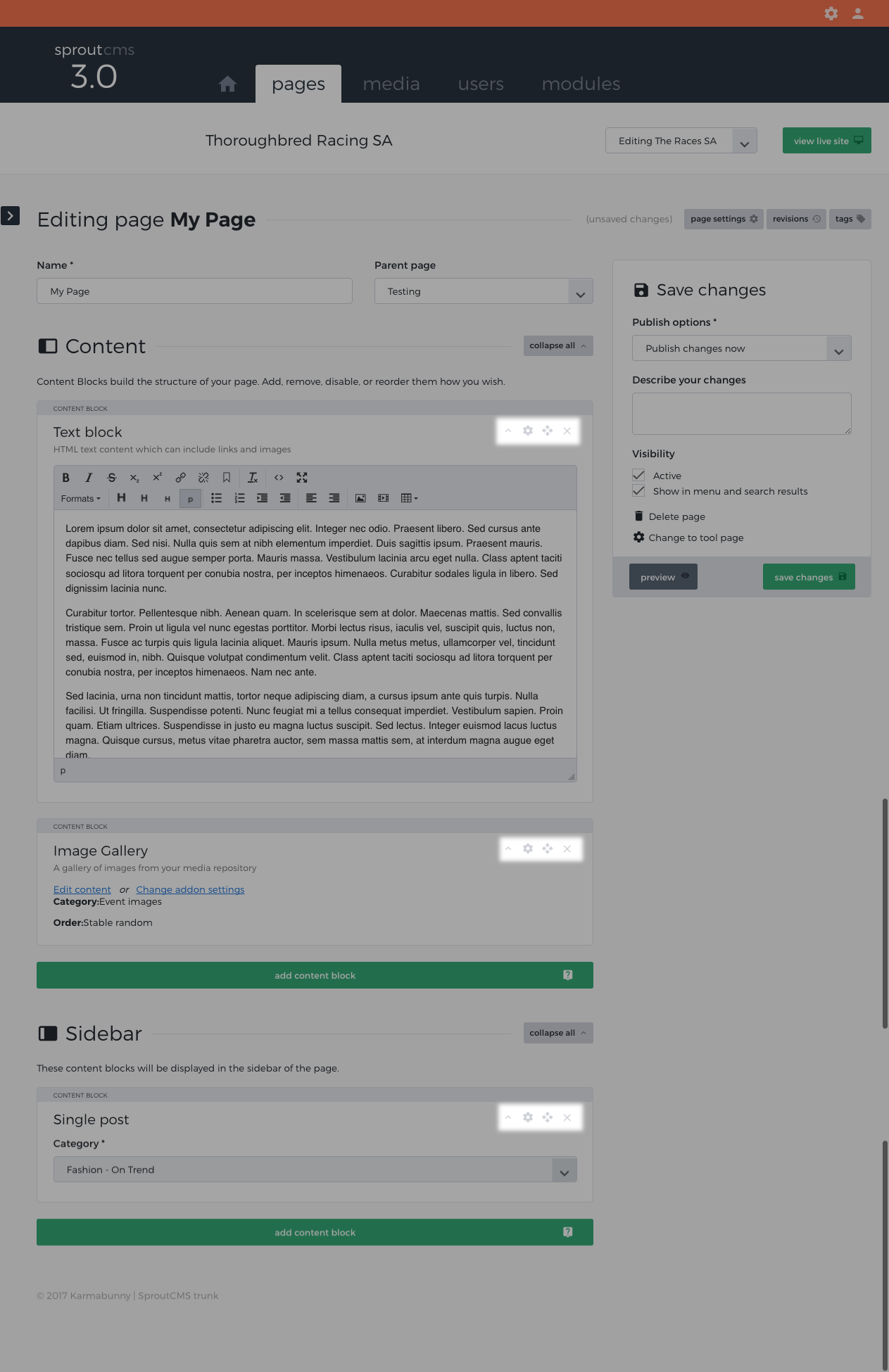
Click on the cross 'X' button at the top right of the content block you wish to delete. Note that you can undo this deletion if you have done this in error by clicking on the undo bar that appears where the module was.
Re-ordering content blocks
Click and drag the content block by grabbing the crosshatch at the top right of the content block. Because of page height restrictions this can be a little easier if you collapse the content blocks before attempting to re-order (see collapsing 'content blocks' below).
Disabling a content block
If you wish to disable a content block temporarily but leave it in place within your editing environment you can click on the small cog symbol at the top right of your content block and choose 'disable'.
Collapsing content blocks
Above and to the right of your list of content blocks you will see an option to 'collapse all'. This will collapse all content blocks in that page area, allowing you to get a quick snapshot of what type of content is there and creating an easier environment for re-ordering the content blocks.
Other Page options
Name
Update the page name, if desired. This will be published on page as your primary page heading, displayed in your default title tag, used as a default navigation option and used as the initial web slug (the final part of the URL - eg. About us will become /about-us).
Parent Page
This is where your page lives within the structure of your website. So, for example, if you have a page called 'Our People', you may want it to live in the 'About Us' section. In this example 'About Us' would be the 'Parent page' when editing the page 'Our People'.
For more page options see "Page settings".