
Appearance
[5.2] Files - editing
To edit the details of a file on your website:
- Click into the Media repository tab
- Locate the file you wish to edit, using the categories or main list search tools
- Click on the row containing the name of the item
- Update the details, as per below
- Save changes
File details
Name The name of the file. This is normally only shown in the admin, unless if you have the Advanced Document Search module installed
Description A description of the file. This is normally only shown in the admin, unless if you have the Advanced Document Search module installed
Info Shows some information about the file, including it's filename, URL and type.
Usage This shows the area where the file is used in the CMS.
Manipulate image
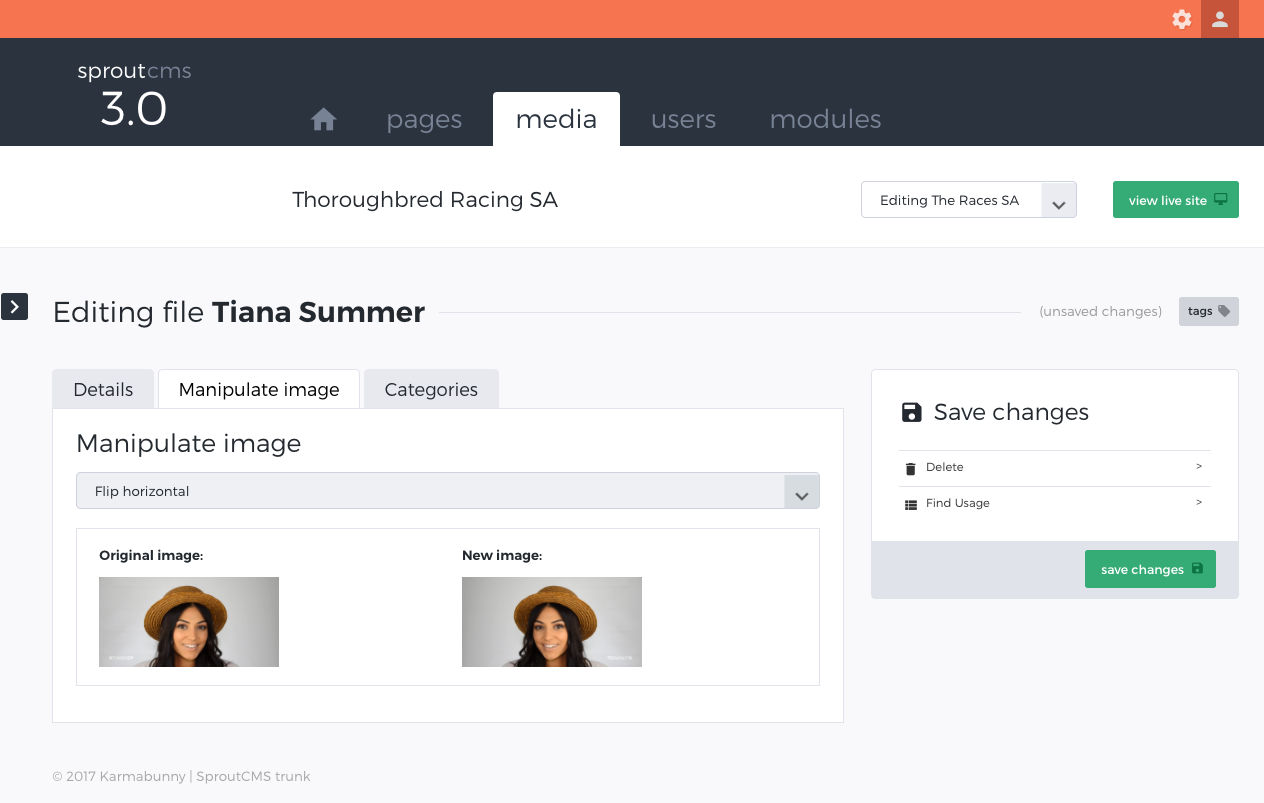
You can rotate and flip images using this tool.
The original and a preview of the modification is shown.
Depending on your computer network their might be a delay propagating the change in the file.
This tab is only shown for images.
Replace file
You can upload a new version of the file here. The old version is replace with the new version.
Depending on your computer network their might be a delay propagating the change in the file.
Categories
Files can be placed into one or multiple categories. You can add new categories here by entering a name for the new category in the box and clicking Add.
These categories are useful fo ryour own organisational purposes but also allow you to group items for display on the website. Examples of this are:
- The image gallery content block - allows you to create an image gallery by simply selecting a category of files in the media repository. This gallery then updates as you add in new images to the category.
- The file list content block - allows you to create a list of downloadable files by simply selecting a category of files in the media repository. This list then updates as you add in new files to the category.
Important security note
You may notice that you can create private pages with content that can only be accessed by specific users (See entry in Pages on 'Creating private pages'). Importantly any files that are stored within your media repository will NOT become 'private' simply because you have linked to them from a 'private' page. If you require your files to be 'secure' and have specific access rights then contact us about getting the 'secure files' module installed.