
Appearance
[10.2] Page Galleries
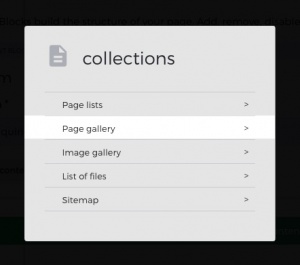
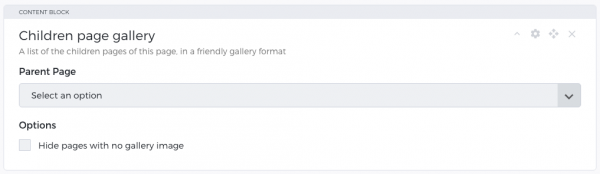
A page gallery displays all sub-pages or child pages—of the page you specify as the Parent page in the content block settings—in a grid with an image, with the title of the listed page usually down the bottom of the image.
You add a page gallery by adding the content block Page gallery to the page you'd like the gallery on.
If you haven't set an image for a child page, there will be a placeholder grey box, or a default placeholder image, instead. To hide pages that don't have a set image check "Hide pages with no gallery image".
To set a page's image, navigate to the page you'd like to set an image for using the page list in the left column side-bar. Once on the Editing page view, just below the subsite & view site options in the top right of the Sprout interface, there is a button titled "page settings," click it.
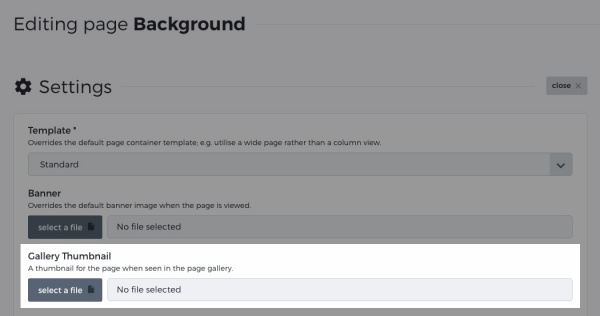
Under Gallery Thumbnail select an image from either; files already uploaded to the site's media repository, or upload a new file.
Once you've selected an image, confirm by clicking Save changes.