
Appearance
[10.3] Image Gallery
[10.3.1] Overview
Most Sprout3 CMS versions allow a user to create an image gallery, which is a collection of images displayed in either a grid or a slider.
To check if yours is capable of creating an image gallery, go to any internal page (not the home page) and click the big button: "add content block".
While looking at the list/gallery of content blocks—if your version of Sprout has image galleries enabled—you should see under "collections" an option named "Image gallery".
[10.3.2] Make an image gallery
Step 1: Create a category for the images in your image gallery
- select the "media" repository tab from the top navy header
- select "add category"
- name the category,
- click "save changes".
Step 2: Add your desired images to the category, either:
- upload the images you'd like to have in your image gallery, [consult section 5: Media Repository]. Be sure to set the category for each image to the one you've created for the image gallery; or
- select existing images and add the image gallery category you've just made. This can be done in a number of ways.
The most straightforward—but possibly time-consuming, depending on how many files your website has—way is looking through "All files"—a category under Files in the left-hand side-bar—and checking the boxes of the images you'd like included in the image gallery and added to the category. Once you've selected all images on that page of image records—you should be near or at the bottom of the list of file entries on that page of records, if not scroll to the bottom of the web page—and select "categorise". This will take you to a page that lists the files you've selected and the Options for Categories underneath. Select the category you made specifically for the image gallery. Select "Save changes". Repeat on each page of file records.
Once you've got all the images you'd like in your gallery in a specific category, proceed to step 3.
Step 3: Make the image gallery and add it to your desired page.
- Navigate to the page you'd like your image gallery to display on via the "pages" tab from the top navy header.
- select the page you'd like the gallery on.
- add a content block.
- under "collections" select "Image gallery"
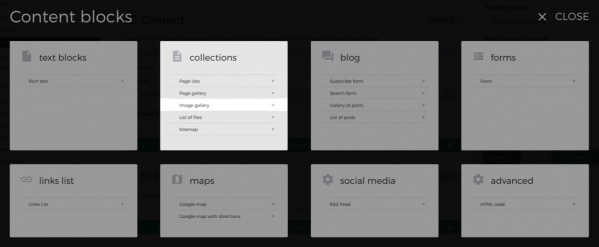
Step 4: Specify your image gallery's settings
[10.3.3] Set image gallery options
Category: this drop down box has a list of all the websites media categories; use it to select the category you specified earlier with the images you want in your image gallery.
Note: if you add or remove any images from the category you're using as your image gallery category, the image gallery using that category will update automatically, adding and removing images to match what's listed in the category.
Display order: allows you to set the order in which the images are displayed—example: Date (most recent at the top), or Alphabetical reverse etc...
Max number of images to show: self-explanatory, allows you to set the maximum number of images from that category to be displayed at any one time. For example, if you have a hundred images in the category you've specified the image gallery to use, but you only want the 20 most recent image to display on the page, you'd set Max number of images to show to 20 and Display order to Date (most recent at top).
Captions: you can pick to either have captions (yes) or not (no). An image in an image gallery's caption is simply the name specified for the file. When viewing an image gallery—once finished—that has captions enabled: if you click on an image the image will display full-sized with its name as the caption followed by a hyphen ( - ) and—only if you've specified a file description—it's description. If captions have not been enabled, the image will simply display full-sized with no written content.
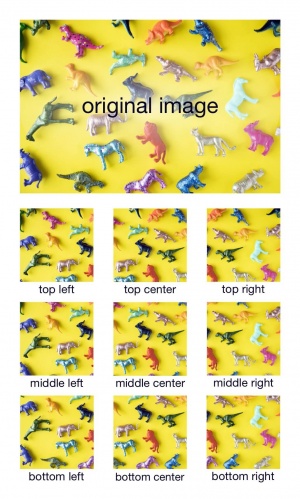
Cropping Anchor: allows you to set—for every image in the entire gallery—where the image's focal point is, so that if/when the image crops each image will crop to keep the specified cropping anchor in view.
Gallery type: set whether you'd like a traditional gallery of images on a grid made up of rows and columns, or a slider that displays one image at a time and allows users to click through them. >
If you selected Gallery, you'll need to specify how many thumbnails per row: 4 means you'll have slightly larger images and more rows, 5 means you'll have the inverse.
If you selected Slider, you'll need to specify whether you'd like the slider to display with
- dots: users can browse through your photos using dots that have been assigned to each image or slide in the slider. The dots usually appear below a slider.
- arrows: users click the arrows to navigate left or right through the photos in the slider; and/or
- auto-scroll: the images automatically display the next image at a specified time frame.
Speaking of a specified time frame, Auto-scroll timer allows you to set the time in seconds for displaying one image before it moves to the next.
Once you've specified all settings with an asterix ( * ) and any others you'd like to set to achieve your desired image gallery, click "save changes".
On your website, you can then navigate to the page you put your image gallery on and you should your new gallery.