
Appearance
[10.4] List of Files
[10.4.1] Overview
Adding a List of Files allows a user to specify a category of files and have a list of those files in that category generated on the page for easy download. The files list can be used for listing any type of file. For example: documents [PDFs, word documents etc...] and/or images [jpgs, pngs etc...].
The default List of Files will list the name, the type, and the size of each file in a vertical list format.
[10.4.2] Creating a category for the file list
In the media repository, add a category that you can add all the files you'd like displayed in your file list to. Click Add category, name the new category, then confirm Save changes.
Add whichever files are already in the media repository to that category.
How to add a new or another category to existing files in the media repository.
Locate the file you wish to edit, using either the categories in the left column side-bar, the main list search tool, or by browsing through the all files option. You can either select and edit the individual file and add the desired category, or use the check boxes on the left side of any file listings to select a group and use the categorise option down the bottom of the file listing to add a category to all files selected.
Or upload new files, using the Add file tool in the left column side-bar and be sure to specify the new category you're using for your file list.
[10.4.3] Adding the file list to a page
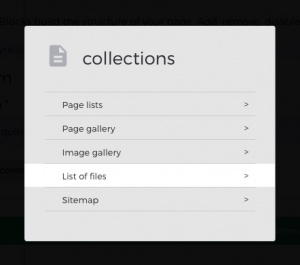
Navigate to the page you'd like the file list to display on and edit the page.
Select Add content block, and then under Collections select List of Files.
Once you've added the List of Files content block, specify the category with the files you'd like listed on the page, using the drop-down box Category.
Lastly, specify the display order:
- Alphabetically (A-Z)
- Manually (in the same order as the file are listed in the category—you can change the order of the files in the category in the media repository)
- Oldest first
- Newest first
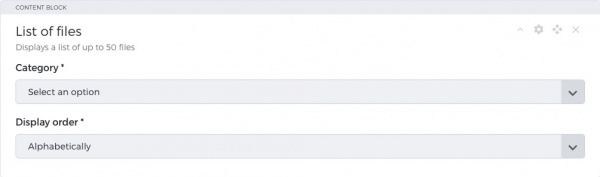
Confirm "Save Changes" in the right column sidebar and you should see your new file list on your page.